# Connecting an ENS account to Passport
This guide gives instructions on connecting an ENS account to Gitcoin Passport and outlines any known issues.
### Prerequisites
* Gitcoin Passport
* If you don't already have a Passport setup, you can follow our guide to do that first.
* An ENS address held on the wallet address associated with your Gitcoin Passport
* If you do not have an ENS account, you [can buy one directly from the ENS app](https://app.ens.domains/).
### How to verify your ENS account
Step 1: [Go to passport.gitcoin.co](https://passport.gitcoin.co/) and connect your wallet.
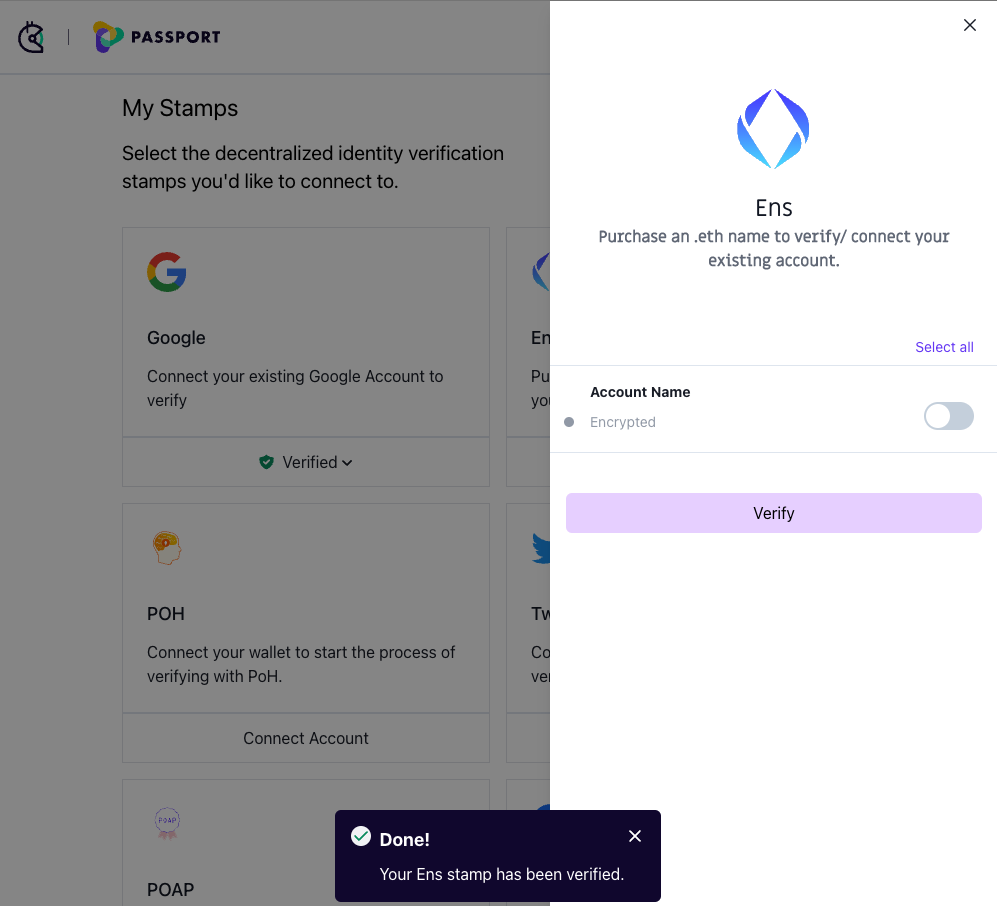
Step 2: Click **Connect Account** on the ENS stamp card.
Step 3: Select the toggles you want to use for your stamp then click **Verify.**
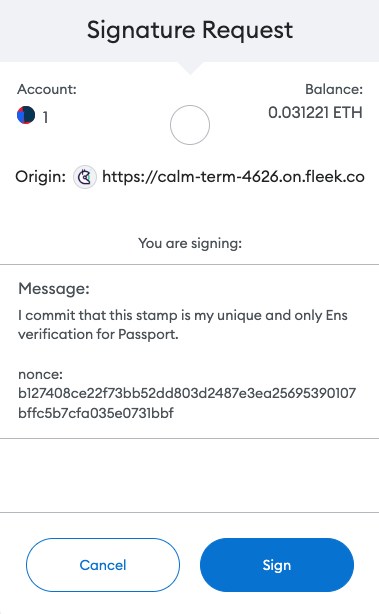
Step 4: A signature request modal will pop up. Read it carefully and then click **Sign**.
Step 5: Return to the passport browser window and confirm your account is now verified.
You can confirm this by seeing the button that previously read as Connect Account will now say **Verified**. Alternatively, [you can inspect the Passport JSON.](https://support.gitcoin.co/gitcoin-knowledge-base/~/changes/u95K1LIg4EpcHUmS8Khm/gitcoin-passport/common-questions/how-to-access-your-passport-json)
### Unable to verify ENS Stamp?
If you receive the error Your address does not have an ENS domain associated, that means the owner bought an ENS domain but didn’t set the reverse records.
#### **Solution**
1. You need to set up an ENS reverse record. Please refer to this helpful guide:
2. Once you set the ENS reverse records correctly, please come back to verify your ENS stamp.
### Still not working?
If you're unable to connect after following these steps, you can talk to the support team through the chat window (bottom right) on this page and many of our product pages, and we'll try to help resolve your issue.